Corporate Cards

B2B SaaS
Product Design
FinTech
How does one replace a paper trail?
Designing a corporate cards product for a market that ran on receipts and a spreadsheet.
ROLE
Product Designer
TIMELINE
Q2 2023 - Q1 2024
SKILLS
Wireframing
Ui/UX Design
Prototyping
User Testing
QA
User Research
the company name has been changed for this case study. the work is real.
First, a question that surprised me.
When I started this project, I asked the finance team a simple question. How do you actually pay for things at the company right now?
The answer surprised me. There wasn't really a system. There was an admin coordinator. A few office runners. A spreadsheet. A drawer full of paper receipts. And for any work travel, the employees were just paying out of their own bank accounts and hoping to get reimbursed in next month's paycheck.
The whole company was running its business spending the way you'd run a small household budget. The international tools that solved this elsewhere had no local equivalent. So we were building one.
The Problem
BUSINESS PROBLEM
No infrastructure to control or track company spending, leaking time and cash through a manual paper process.
NEED
A real-time system that gives finance teams visibility and control without slowing employees down.
USER PROBLEM
Employees fronting personal money. Finance teams chasing receipts and approvals across email and paper.
NEED
A fast, controlled way to spend on behalf of the company without becoming the company's accountant.
Naila's day, before and after.
Naila is a finance officer who's day to day frustrations include approvals stuck in email, no real time view of processes and reconciliation lives in one spreadsheet on a laptop. Her goal is to approve, monitor and reconcile company spending without becoming the bottleneck.
Journey
Global Examples
US • Fintech
Mercury
Strong account model. Reference for our request flow.

US • Startup
Ramp
Best-in-class admin controls. Closest size match to our customer.

US • Startup
Brex
Card-first dashboard. The pattern we tried first and discarded.

None of these existed in the local market. I wasn't copying them. I was looking at what conventions had been worked out elsewhere so I wasn't reinventing patterns the finance team would have to learn from scratch.
BEFORE
Request via email or chat
Reply asking for details
Wait and approve via email
No visibility into spending
Handle issues case by case
Reconcile in a spreadsheet
paper, email, memory, and a spreadsheet on one laptop
AFTER
Request lands with full detail
Review in one place
Bulk approve or send it back
Monitor live spend at a glance
Resolve exceptions inline
Export reconciled data
one dashboard, real-time, shared between admin and engineering
Every action mapped.
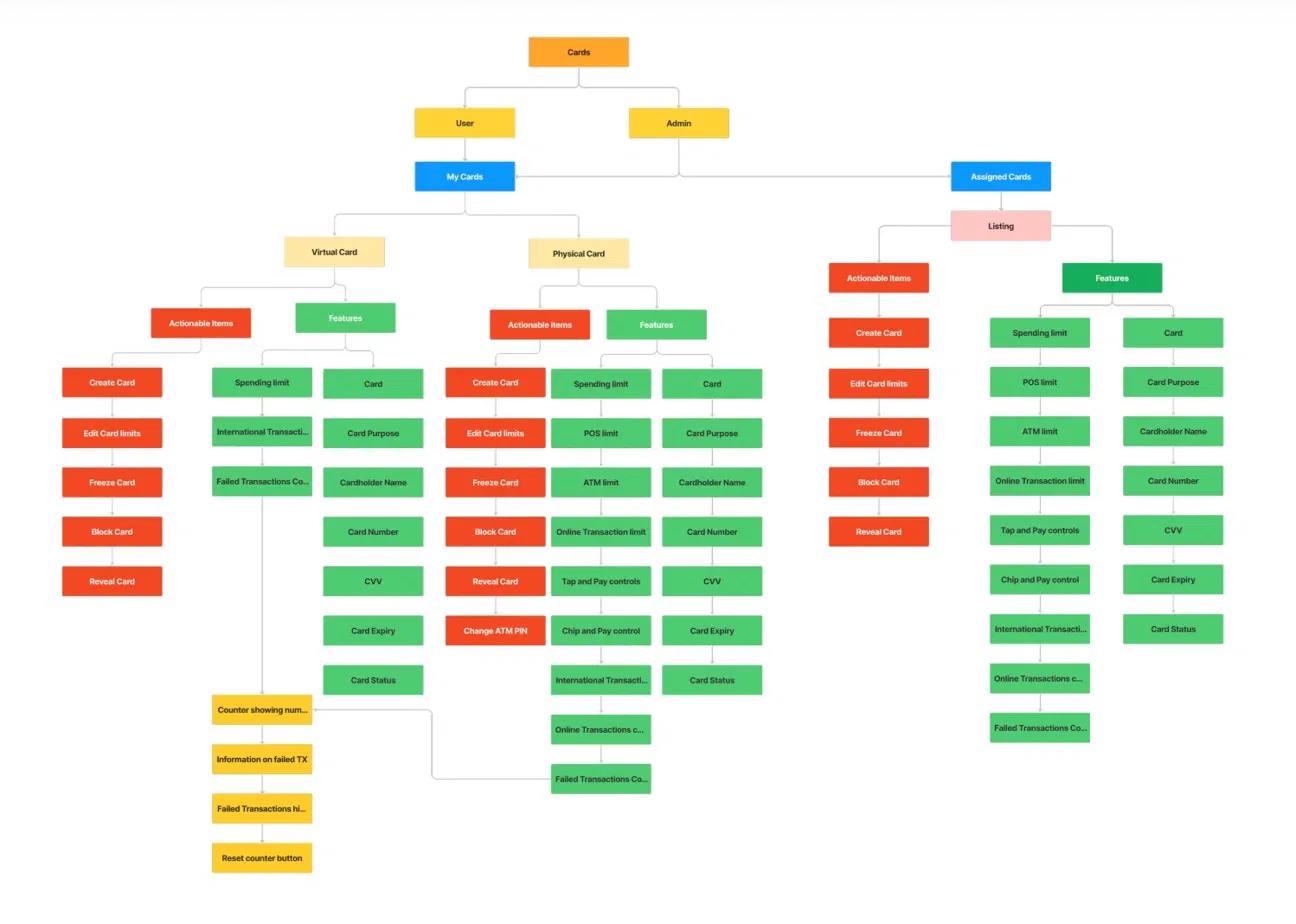
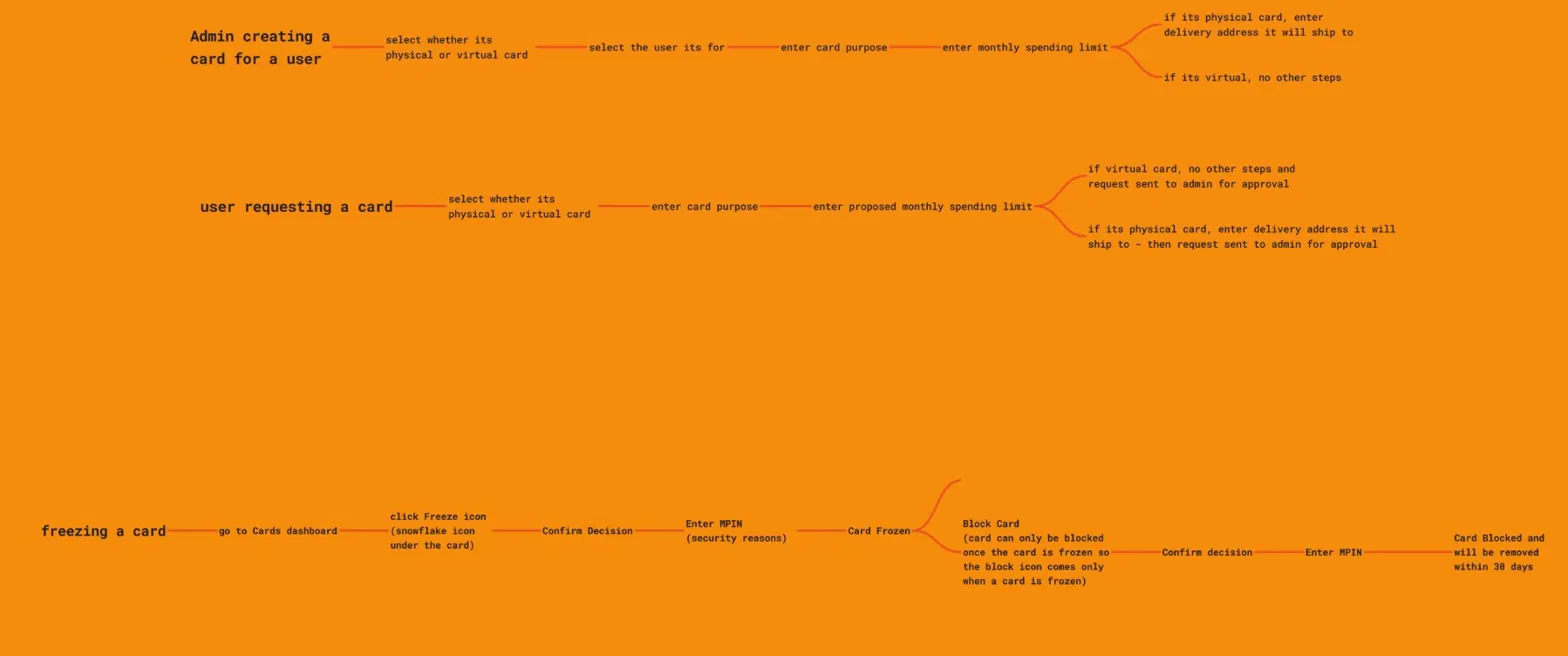
A handful of the user flows. Made for engineering handover, but they also sharpened my thinking. Drawing every branch made me notice the gaps before they became bugs.
FLOWS

Final Product


The Corporate Card is a central element of the dashboard, offering key controls and functionalities for seamless management. To enhance security, the card number is initially hidden. By clicking the "Reveal" button and entering a password, users can easily access the card number.
The card interface is designed for intuitive use, ensuring that all essential information is readily available. The purpose of the card is prominently displayed at the top, providing a clear understanding of its intended use. Additionally, users can easily identify whether the card is virtual or physical, simplifying the navigation process.
The Freeze Card feature provides a convenient control on the dashboard for users to address suspicious or unauthorized activity. This option allows users to temporarily freeze their card, preventing any further transactions. A pop-up window appears when the user clicks on the designated button in the dashboard, facilitating a seamless user experience.
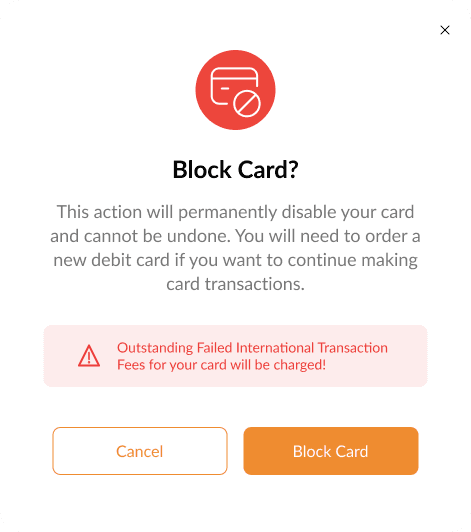
For a more permanent solution, users can choose to block their card. This action is particularly useful in cases of suspected fraud or when a card needs to be permanently deactivated. Administrators also have the capability to block a card for an employee, such as when an employee is terminated, ensuring that the card is removed from the system.


Admins have additional controls on the portal compared to regular employees. While employees have autonomy over their own cards, admins can oversee and manage both their own and their employees' cards, including the ability to restrict them when necessary.
To optimize this feature, admins have access to two distinct dashboards. One dashboard displays their own cards, along with their limits and controls. The other tab shows all cards assigned to their employees or team members.
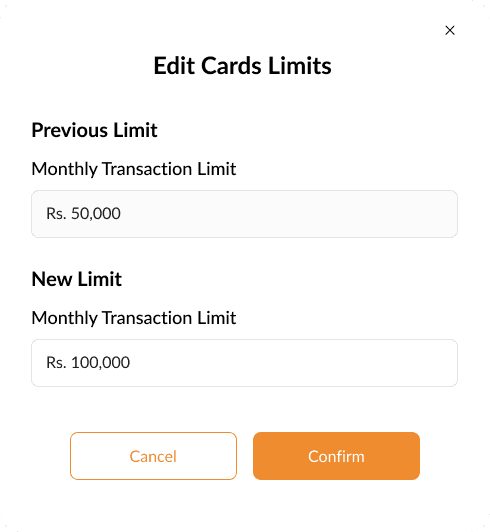
The view of assigned cards underwent several iterations to determine the essential information to display per card in the list for the admin, with additional details available in a side drawer upon clicking any row. The key features include the cardholder's name (the employee the card belongs to), the purpose of the card (e.g., travel, office supplies) and its type (physical or virtual), the spending limit utilized on the card, and an approval column to track whether they need to accept or deny card requests.
To enhance efficiency, a search bar and filters were added to assist admins in locating specific cards. The design ensures that the list remains minimal and clean, conveying all essential information without overwhelming the admin.

The Failed Transactions Counter is a vital component of the Cards dashboard, reflecting NayaPay's commitment to maximizing security. This feature detects suspicious activities and records failed transactions, ensuring users are informed promptly.
Beyond security, this feature is crucial for managing transactions when account balances are low. If a transaction is attempted with insufficient funds, it is marked as failed and recorded. After five failed transactions, the card is automatically blocked, requiring users to request a new one.
The counter displays five bars, each representing a potential failed transaction. As a transaction fails, a bar turns red, alerting the user. By clicking the expand button (arrow), users can view specific failed transactions and access a reset button to address them.



Coffee, projects, half-baked website ideas, or your hottest design take (bonus points if it's pro Comic Sans).
My inbox is open.